
How To Connect Domain with Lime Funnels
Want a Lime Funnels Expert to complete this step for you? Learn More Here
WARNING!!! If your custom domain is currently connected to another website and you complete these steps, you will lose access to the existing site on that domain.
To proceed, ensure you’re ready to fully move your custom domain to Lime Funnels, or choose a different custom domain instead.
If you plan to keep some content on another hosting platform, consider using a custom subdomain for Lime Funnels instead. Follow the Custom Subdomain setup instructions to do this.
This is a 3 step process.
- You will set up your Cloudflare
- You will connect Cloudflare to Godaddy
- You will connect Cloudflare to Lime Funnels
Step-by-Step Instructions
Follow the steps below in the exact order to properly connect your DNS to Lime Funnels.
These instructions set up your root domain (domain.com). We do not recommend using www.domain.com, as the setup is different however, the www version will automatically redirect to your root domain.
Step 1: Create a FREE Cloudflare account here (if you have an existing Cloudflare account, move to the next step).
FAQ: What is Cloudflare and why do I need that?
Cloudflare is a global network that improves your website’s security, speed, and reliability. We use Cloudflare to route your domain, which protects your site from threats like DDoS attacks and malicious bots, while also significantly increasing site speed, helping your pages load faster and convert more visitors into sales.
Step 2: On the Home page of Cloudflare, click the Add a Site button.
Step 3: Type in your custom domain as: yourdomain.com (without the www), and hit Add Site.
Step 4: Select the Free plan and click Confirm Plan.
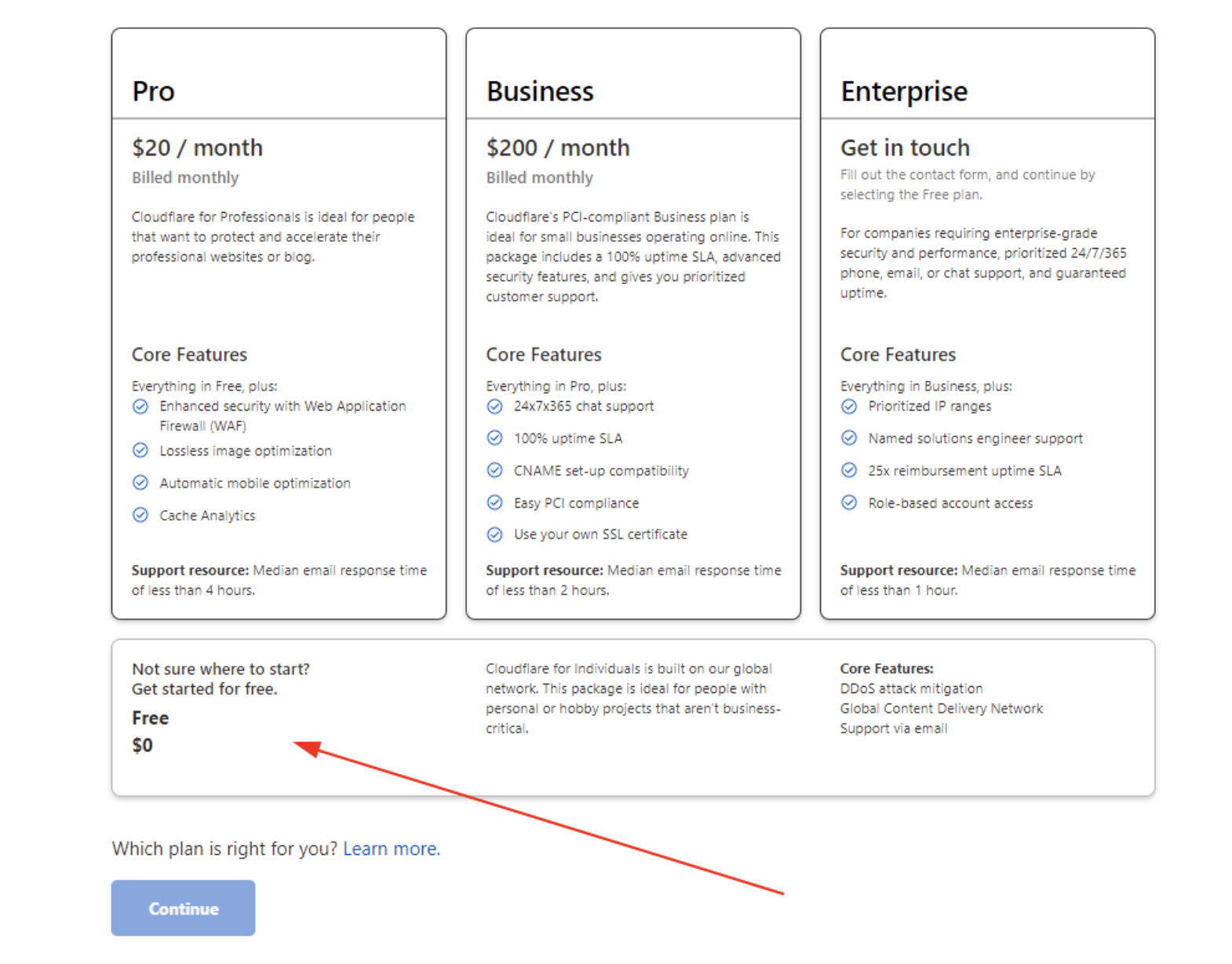
NOTE: Your current DNS configuration from your domain registrar (like Go Daddy) will now be copied into your CloudFlare account.
Step 5: The DNS setup depends on where your DNS is hosted.
If DNS is hosted at Cloudflare
You do NOT need an A record.
set CNAME WWW l7khgi3843.onrocket.site turn off Proxy status

set a second CNAME @ l7khgi3843.onrocket.site turn off Proxy status

You DO need one A record.
Type: A
Name: @
Value: 104.19.154.92
TTL: Auto
Click: Save Record
Proxy Status: DNS Only (Grey Cloud)
set @ to A record pointing at 104.19.154.92

Make sure you only have ONE "A record" present on your DNS settings before proceeding.
Good job! That was easy right?! Let's keep going....
Connect Your Cloudflare To Your Domain Provider
Step 6: You’re now ready to change your domain name servers. Go to the Overview tab, then under Quick Actions on the right, click DNS Settings to view your Cloudflare nameserver records.

Scroll down to the bottom of the page where you see this...
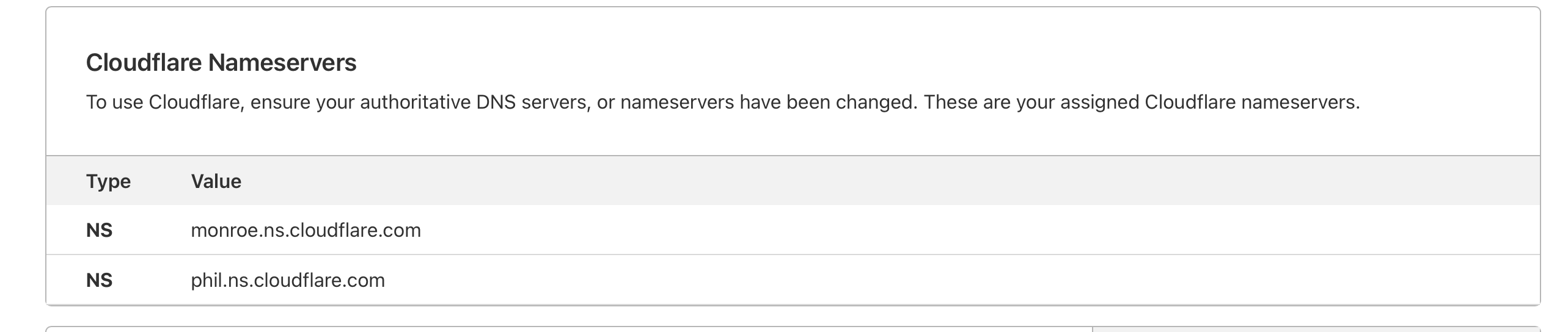
The values in your account may differ from the example shown. Be sure to use your own Cloudflare nameservers and enter them into your domain’s nameserver fields.
Connect Cloudflare With Lime Funnels
Step 7: Login to your Lime Funnels dashboard, navigate to Settings > Domain Mapping

Next you will see this in the bottom right hand corner. Click "Add Domain"

This will pop up, click "Next Step"

Step 8: Delete any existing text within the field (For existing custom domains) and place your new domain into the field.
Step 9: Type in the domain name that you purchased. Enter your domain as shown (INCLUDE https:// but DO NOT INLCUDE www)
Step 10: Click the toggle switch to make your domain primary.
Step 11: Click "Add Domain"

Check To Confirm Your DNS Is Working
It's time to check to confirm your DNS is working!
Go back to the overview part of Cloudflare and you should see a box that says this ...
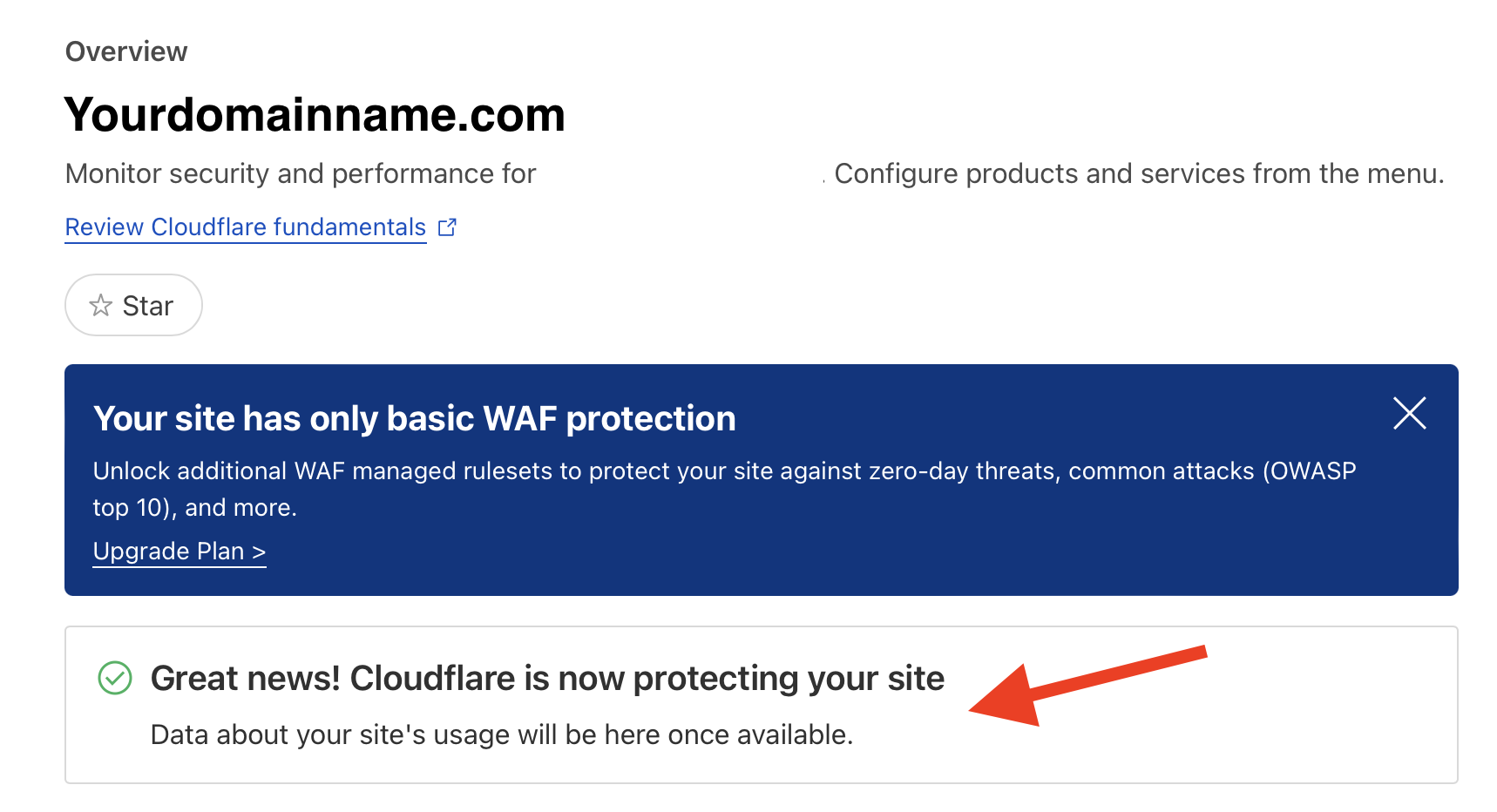
DNSChecker.org is a tool that lets you check DNS propagation worldwide. You can verify if your DNS records like A, AAAA, CNAME, MX, and more have updated across servers in different regions.
The site aims to help users monitor and manage their DNS records effectively, ensuring that changes are fully propagated and accessible from different locations.
Congratulations!